Journeys
Journeys are automated multi-step workflows that run for individual members when a trigger event occurs. Each journey executes a sequence of steps — sending emails, granting points, waiting, or adding members to a segment — without any manual work after setup.
How Journeys Work
Trigger event fires (e.g. customer abandons cart) → Member enrolled in journey → Steps execute in order with optional waits between them → Journey completes.
Glancito checks triggers every 15 minutes and advances enrolled members every 5 minutes.
Journeys List
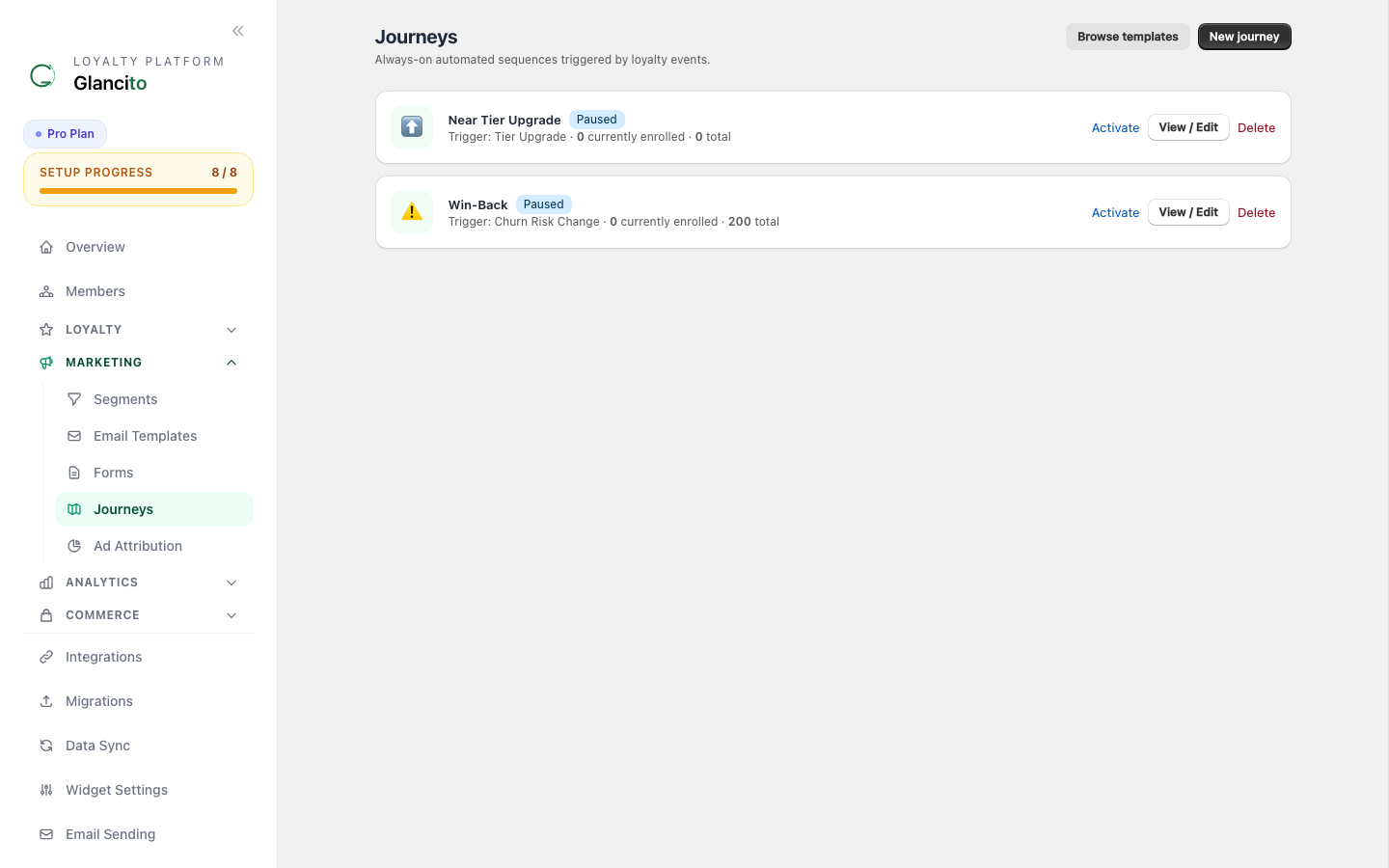
Each journey card shows its trigger type, how many members are currently enrolled, and total enrollments. Use Activate / Pause to control whether the journey is running.
Creating a Journey
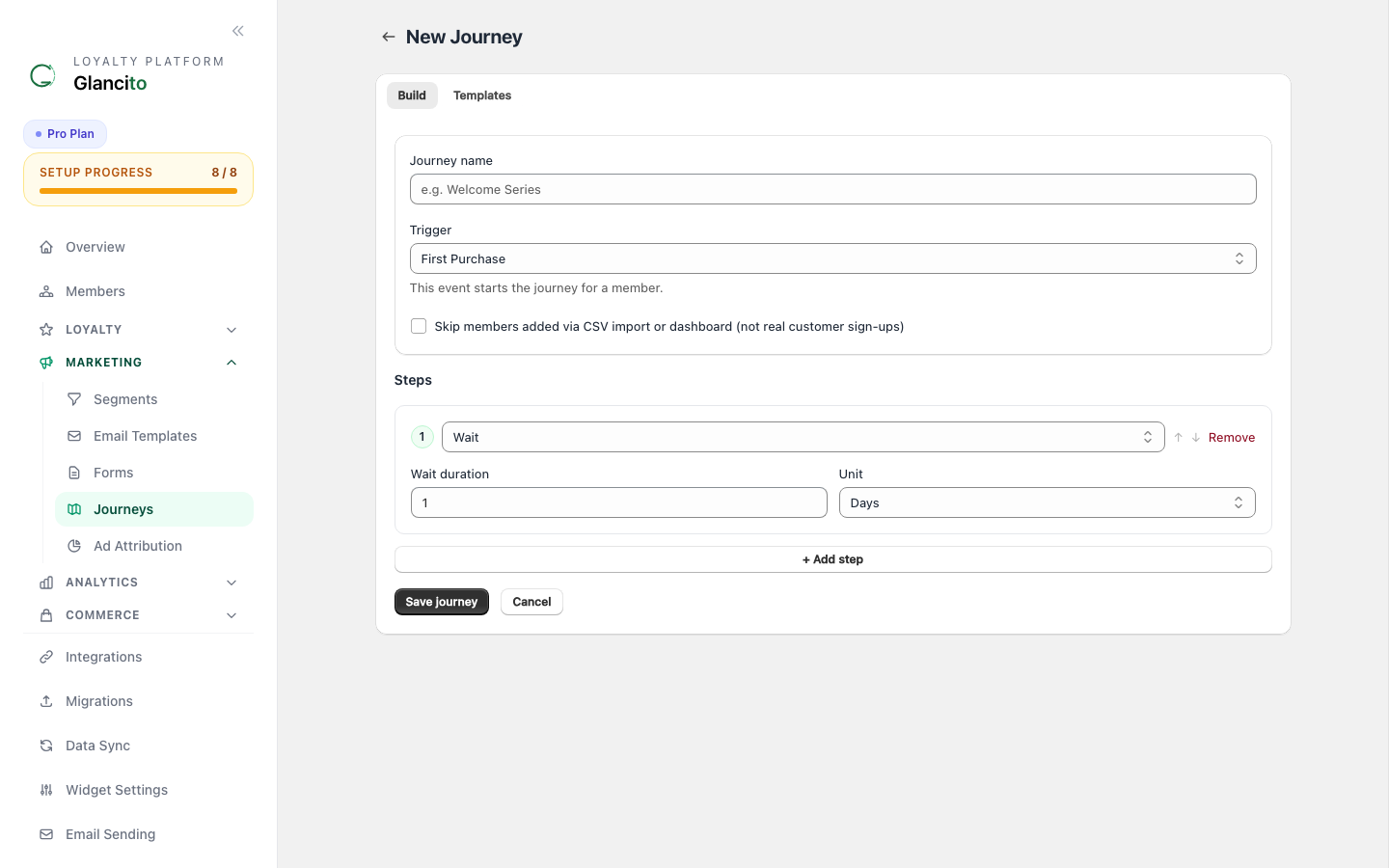
- Go to Journeys in the sidebar (under Marketing)
- Click New Journey
- Set a name and select a trigger — trigger-specific config fields appear immediately below the dropdown
- Add and arrange steps using the + Add Step button
- Save — the journey starts in Paused state
- Toggle it Active from the journey list or detail page to begin enrolling members
Triggers
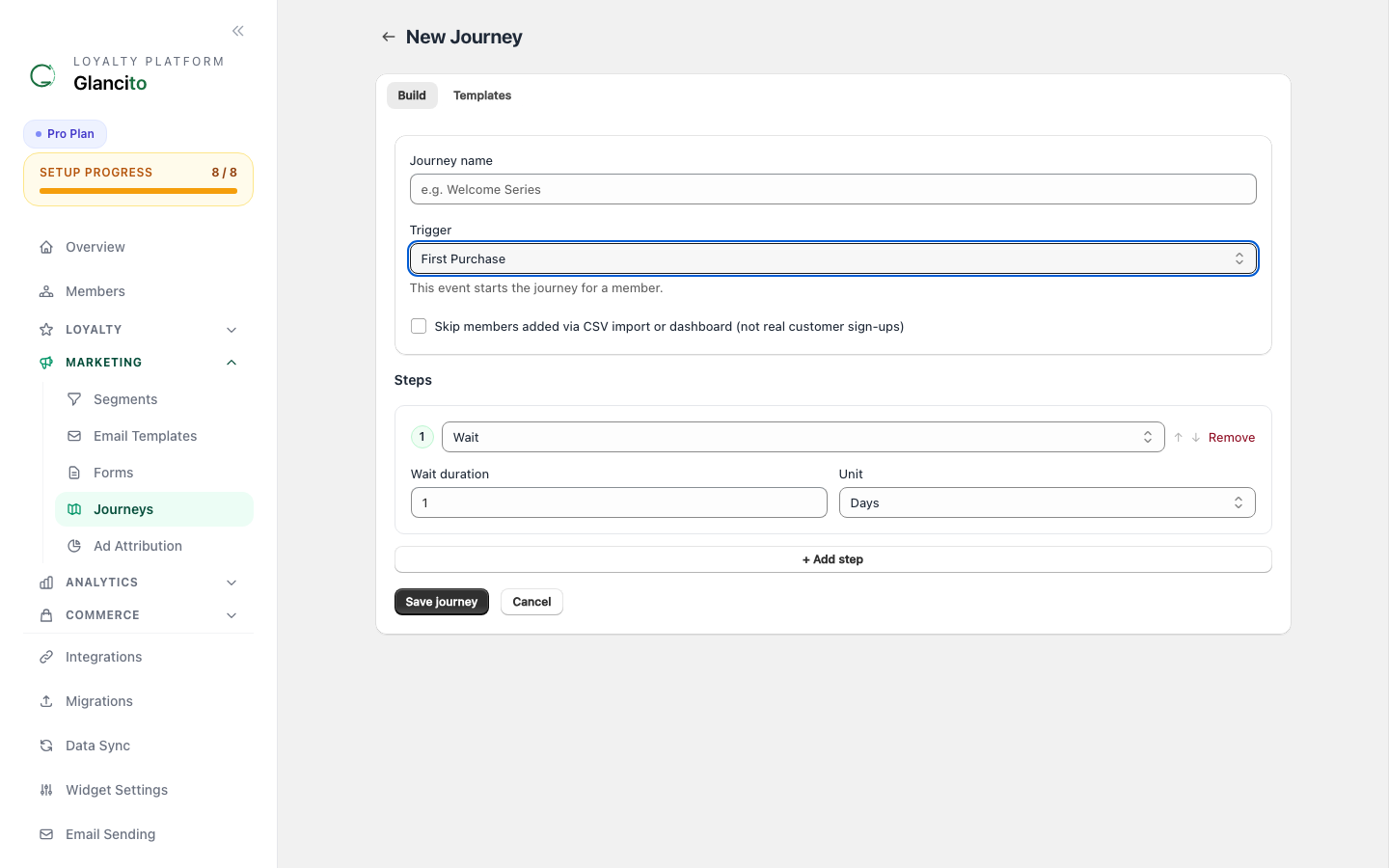
The trigger defines which event starts the journey for a member.
| Trigger | When it fires |
|---|---|
| Member Joined | A new member is created (Shopify sync, embed form, import) |
| Abandoned Cart | A member adds items to their Shopify cart but does not complete checkout within 1 hour |
| First Purchase | A member places their very first order |
| Order Placed | Any order is placed by a member |
| Birthday | Today matches the member's saved birthday (day + month) |
| Tier Upgrade | A member's tier changes upward |
| Tier Downgrade | A member's tier changes downward |
| Churn Risk Change | A member's churn risk label changes to a target value (configurable) |
| Segment Entry | A member newly joins a specific segment (only members added after the last trigger run) |
| Segment Blast | Enroll all current members of a segment at once — useful for one-time campaigns |
| Referral Complete | A referral is completed (enrolls both referrer and referee) |
| Points Expiry Warning | A member's points are approaching expiry |
| Reward Redeemed | A member redeems any reward (or a specific reward, configurable) |
| Points Threshold | A member's balance reaches a configured threshold |
| Inactive Days | A member has had no activity for N+ days |
| Email Not Opened | A member did not open a specific campaign after N days |
Step Types
Steps are the actions Glancito takes for each enrolled member.
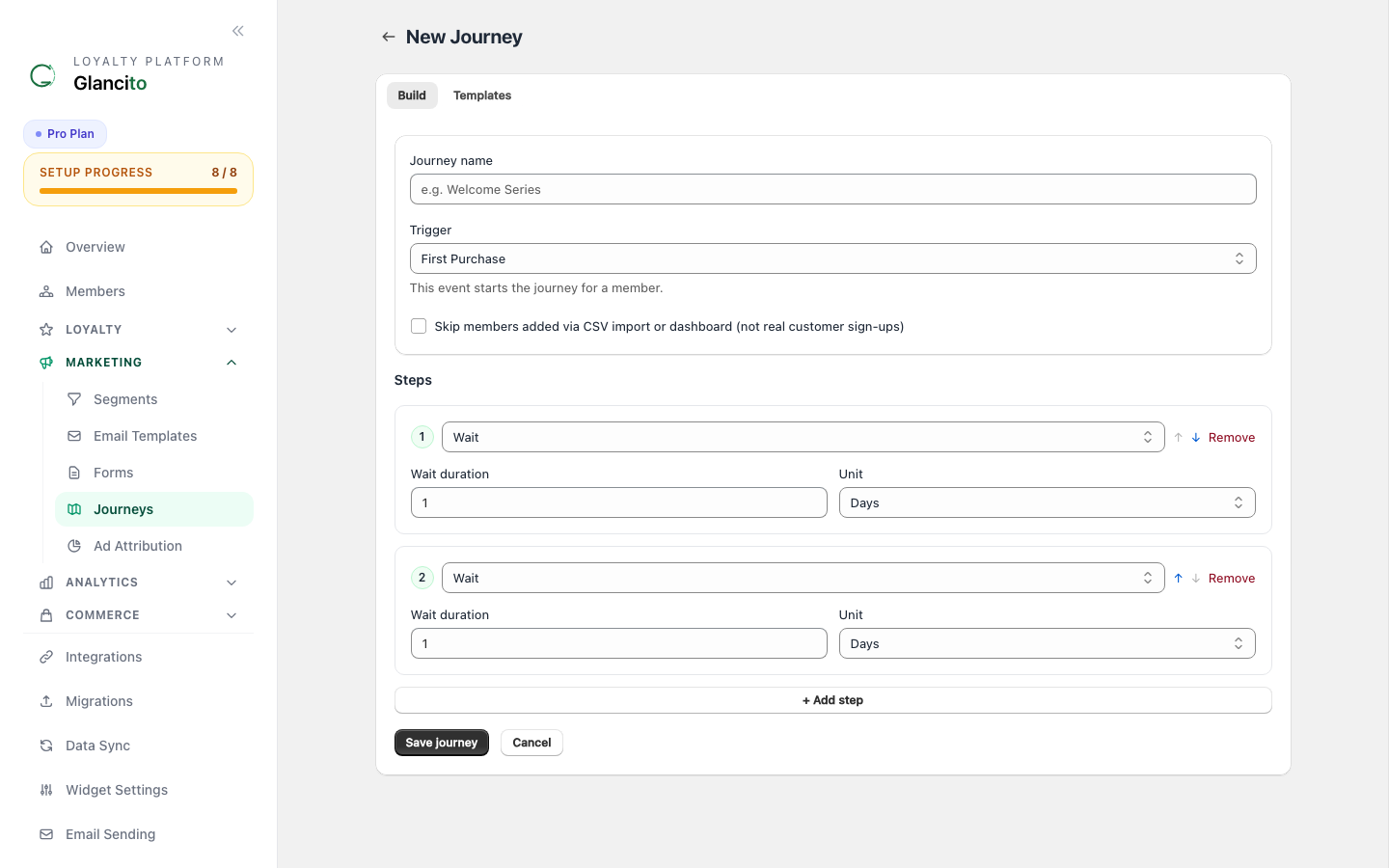
Wait
Pauses the journey for a specified duration before moving to the next step.
| Field | Description |
|---|---|
| Value | A number |
| Unit | Minutes, Hours, or Days |
Example: Set value to 1 and unit to Days to wait exactly 24 hours before the next step.
Send Email
Sends a personalised email to the member.
| Field | Description |
|---|---|
| Subject | Email subject line (or leave blank to inherit from the selected template) |
| Body | Email body — supports {{first_name}} and {{points_balance}} tokens |
| Template | Select a saved email template to use its design and HTML |
Members who have unsubscribed or not consented to email marketing are automatically skipped.
Grant Points
Awards loyalty points to the member's account.
| Field | Description |
|---|---|
| Points | Number of points to award |
| Description | Label that appears in the member's transaction history |
Add to Segment
Adds the member to a specific segment (useful for follow-up campaigns or targeting).
| Field | Description |
|---|---|
| Segment ID | Paste the UUID from the Segments page |
Abandoned Cart
The abandoned cart trigger lets you automatically re-engage Shopify customers who added items to their cart but did not complete checkout.
How It Works
Customer opens Shopify checkout
  → Shopify fires checkouts/create webhook → Glancito records checkout as "open"

Customer updates the cart (adds/removes items)
  → Shopify fires checkouts/update webhook → Glancito updates the checkout record

15 minutes pass (Glancito background check runs)
  → Any "open" checkout not updated in 1+ hour → promoted to "abandoned"
  → Member enrolled in the Abandoned Cart journey

Customer completes purchase later
  → Shopify fires orders/paid webhook → checkout marked "recovered"
  → No further journey steps execute for recovered members
Checkout States
| State | Meaning |
|---|---|
open | Checkout created or recently updated; payment not yet complete |
abandoned | No activity for 1+ hour and no matching order; member enrolled in journey |
recovered | A paid order matched the checkout token; customer converted |
Member Matching
Glancito links a checkout to a loyalty member using:
- Shopify Customer ID — matched to the member's
external_idfield (preferred) - Email address — fallback if the customer is not logged in
Guests who have not joined the loyalty program are tracked but not enrolled in journeys until they become members.
Example Abandoned Cart Journey
A typical 3-step recovery sequence:
Trigger: Abandoned Cart
  │
  ├─ Step 1: Wait — 1 hour
  │
  ├─ Step 2: Send Email
  │     Subject: "You left something behind"
  │     Body:    "Hi {{first_name}}, your cart is waiting.
  │               Complete your purchase to earn points."
  │
  └─ Step 3: Grant Points — 50 points
               Description: "Cart recovery reward"
Tip: Keep the first wait step at 1 hour or more. Checkouts younger than 1 hour are still
openand not yet enrolled.
Shopify Plan Note
checkouts/create and checkouts/update webhooks are available on all Shopify plans. No additional configuration is required after installing the Glancito app.
Journey Enrollment Rules
- A member is only enrolled in a given journey once at a time — if they are already active in that journey, a second trigger event is ignored.
- After a journey completes or is cancelled, the same member can be re-enrolled if the trigger fires again.
- Journeys respect email marketing consent and unsubscribe status at the time each email step executes.
Skip Platform-Added Members
When creating a journey you can check "Skip members added via CSV import or dashboard". When enabled:
- Members imported from another platform (Klaviyo, Omnisend, CSV) are excluded.
- Members added manually through the Glancito dashboard are excluded.
- Members who signed up organically (Shopify store, embed form, merchant API) are still enrolled as normal.
This is useful for welcome journeys — you don't want bulk-imported historical contacts receiving a "Welcome to our loyalty program!" email.
Analytics
Open a journey from the Journeys list to see:
| Metric | Description |
|---|---|
| Total enrolled | Members who have entered this journey (all time) |
| Active | Currently progressing through steps |
| Completed | Finished all steps |
| Cancelled | Manually removed or journey deactivated |
| Errored | Step execution failed; check member profile for details |
Common Questions
Q: Can I have more than one Abandoned Cart journey active at the same time?
A: Yes, but a member can only be enrolled in each journey once at a time. If you have two active abandoned cart journeys, a member will be enrolled in both simultaneously.
Q: What if a customer abandons their cart multiple times?
A: Each abandonment after completing or exiting a previous enrollment creates a new enrollment. If the member is already active in the journey, the duplicate is ignored.
Q: My journey isn't enrolling anyone. What do I check?
- Make sure the journey is set to Active (toggle on the detail page)
- Confirm the trigger event is actually occurring (e.g., members are abandoning carts, not checking out immediately)
- For Abandoned Cart: the 1-hour window applies — checkouts less than 1 hour old won't trigger enrollment yet
- Check that the member record has a linked Shopify customer ID or email that matches the checkout
Q: Can I stop a journey midway for a specific member?
A: Cancel the enrollment from the member's profile page. The member's current step will not execute and they won't progress further.
Discount Codes in Journeys
Add discount_offer_id to a Send email step config to attach a Discount Offer. Glancito resolves the code per member at step execution time and injects it into the email as {{ discount_code }}.
{
  "subject": "Here's your exclusive welcome offer",
  "discount_offer_id": "<offer-uuid>",
  "email_tag": "signup_welcome",
  "suppress_if_tag": "signup_welcome"
}
email_tag— stamped on the member after the email sends; allows later steps to know this was sentsuppress_if_tag— skip this step entirely if the member already has this tag (prevents duplicates when a form welcome email was already sent)
See Discount Codes for the full deduplication guide.